In short
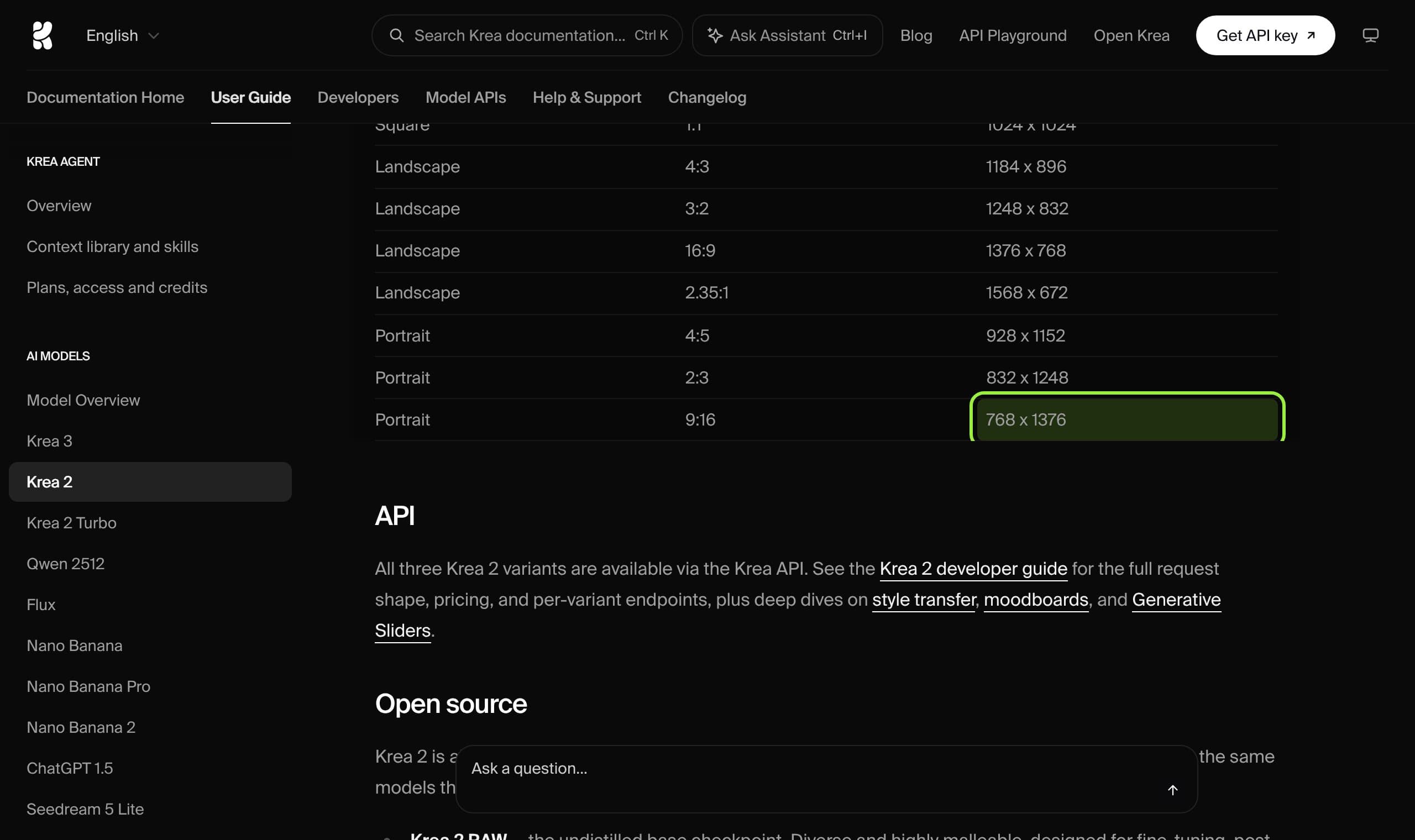
No ComfyUI image model can generate 1080 by 1920 directly, because 1080 is not a multiple of 16. The official 9:16 presets are 1536x2752 for Qwen-Image 2.1 and 768x1376 for Krea 2. For a clean Reel, 864 by 1536 is exact 9:16 and scales to 1080x1920 by 1.25.
A 9:16 Reel is 1080 by 1920, and no image model in ComfyUI can generate that size directly: 1080 is not a multiple of 16, and the model makers publish their own vertical presets instead. Pick the wrong size and you get stretched faces, a stray second figure or a crop that cuts the head off in the profile grid.
This guide gives the exact vertical size for Qwen-Image 2.1, Krea 2 and MOSS-Image, the one size that scales to 1080 by 1920 with no stretching, and where to put the face so Instagram's own interface does not cover it. Every preset below is copied from the model maker's own page; the arithmetic is ours and labelled.
Why 1080 by 1920 is not a size you can generate
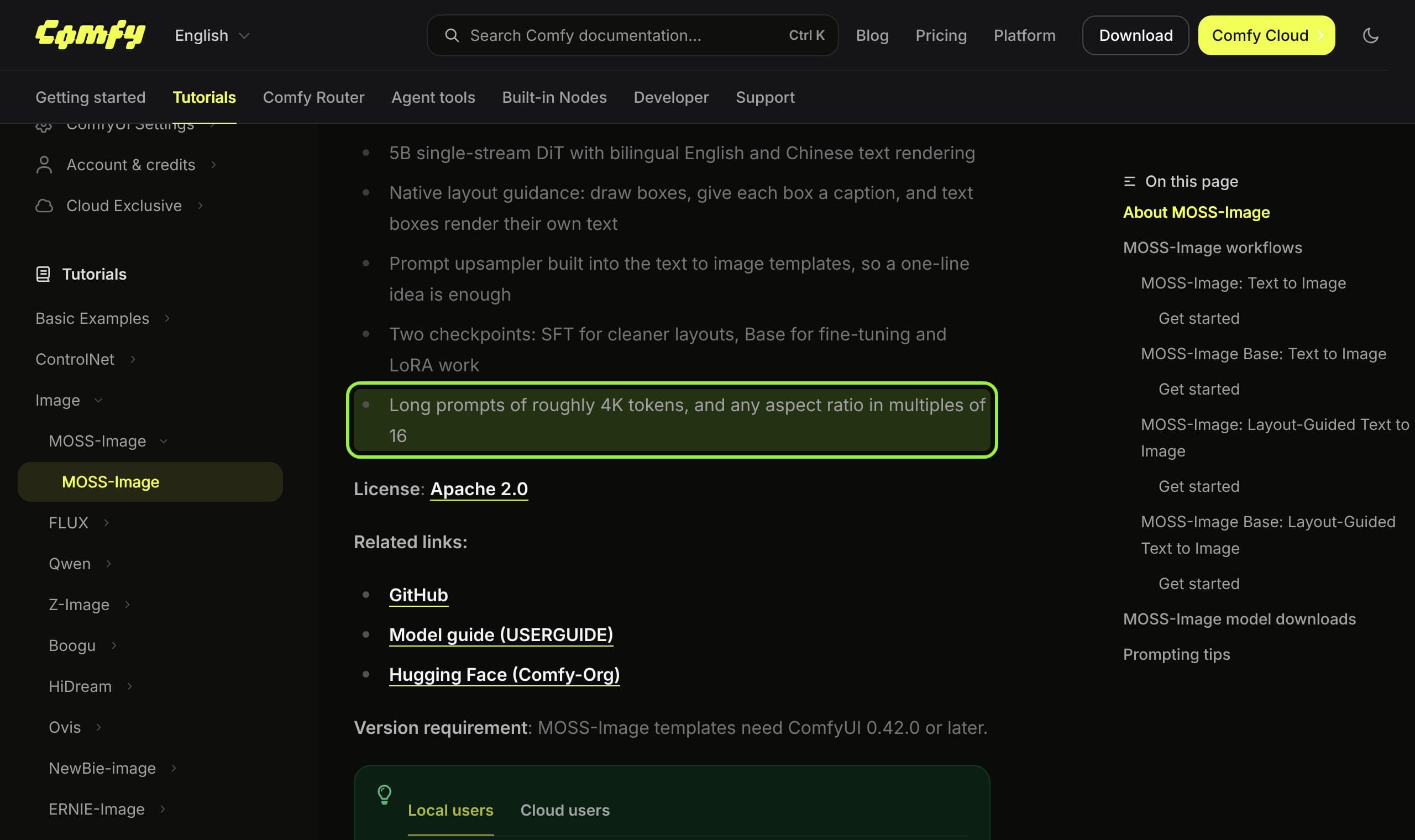
Comfy's MOSS-Image tutorial says the model accepts any aspect ratio in multiples of 16, so width and height must each divide by 16. 1920 does (120 times 16). 1080 does not: 1080 divided by 16 is 67.5. The nearest legal widths are 1072 and 1088, both slightly off 9:16.
Both official vertical presets in this guide have the same small quirk. Qwen's 1536 by 2752 and Krea's 768 by 1376 each work out to a ratio of 0.558, while true 9:16 is 0.5625. That is a 0.8% difference, invisible in a Reel, but it means the preset is not a clean 1080 by 1920 scale-up.
The arithmetic (ours, checked against the vendor figures below)
- Reel canvas
- 1080 x 1920, ratio 0.5625
- Exact 9:16 sizes divisible by 16
- 144n by 256n: 576x1024, 864x1536, 1152x2048, 1440x2560
- 864 x 1536
- 1.33 MP, scales to 1080x1920 by exactly 1.25
- 1152 x 2048
- 2.36 MP, scales to 1080x1920 by exactly 0.9375
- Qwen preset 1536 x 2752
- 4.23 MP, ratio 0.558
- Krea preset 768 x 1376
- 1.06 MP, ratio 0.558
The pattern is 144 by 256 multiplied by a whole number. Any of those sizes is exactly 9:16 and passes the multiple-of-16 rule, and 864 by 1536 is the one that lands on 1080 by 1920 with a clean 1.25 factor.
The vertical size for each model
| Model | Official 9:16 preset | Megapixels | Our exact 9:16 pick | Where it comes from |
|---|---|---|---|---|
| Qwen-Image 2.1 | 1536 x 2752 | 4.23 | 1152 x 2048 (2.36 MP) | Hugging Face model card; Comfy docs say it generates natively at 2K |
| Krea 2 and Krea 2 Turbo | 768 x 1376 | 1.06 | 864 x 1536 (1.33 MP) | Krea user guide size table, labelled 1K |
| MOSS-Image | no preset, any multiple of 16 | trained 1 to 2 | 864 x 1536 or 1008 x 1792 (1.81 MP) | Comfy MOSS-Image tutorial |
Qwen-Image 2.1 ships a dictionary of sizes on its model card, and the 9:16 entry is 1536 by 2752. The same dictionary lists 1:1 at 2048 by 2048, 3:4 at 1792 by 2400 and 2:3 at 1696 by 2528. Comfy's tutorial says the model generates natively at 2K and tells you to set the megapixel target to about 4.0 for a 2048 square. For a Reel, 1152 by 2048 is a lighter and cleaner choice, but it is our pick, not a Qwen preset, so check a few seeds before you commit a batch to it.
Krea 2 lists 768 by 1376 for 9:16 and labels its resolution 1K. Its other portrait presets are 928 by 1152 (4:5) and 832 by 1248 (2:3). There is no 3:4 row, which matters if you plan for the profile grid (below).
MOSS-Image has no preset list. The tutorial says it is trained for 1 to 2 megapixels and extrapolates from about 0.25 to 4 megapixels. That puts 864 by 1536 (1.33 MP) and 1008 by 1792 (1.81 MP) inside the trained range, and 1152 by 2048 (2.36 MP) just past it. Stay inside the range for faces you plan to reuse.
Set it up in ComfyUI, step by step
- 1
Add a ResolutionSelector node
It is built in. Comfy's node page lists a "9:16 (Portrait Widescreen)" option and a megapixel input from 0.1 to 16.0 with a default of 1.0. Choose 9:16 and set the megapixels for your model from the table.
- 2
Set the multiple to 16
The node has an optional multiple input from 8 to 128 whose default is 8. Raise it to 16 for MOSS-Image and Krea. Qwen's tutorial rounds edit canvases to a multiple of 32, so use 32 there if you edit.
- 3
Read the preview, not the label
The node shows the calculated width and height. Its page does not publish the rounding formula, so if the preview is not the size you want, type the width and height straight into your latent node instead.
- 4
Generate at the model size, then resize once
From 864 by 1536 resize by 1.25 to reach 1080 by 1920. From 1152 by 2048 resize by 0.9375. One resize, no crop, no stretch.
- 5
Check the face against the safe zone
Do this before you spend time on an upscale: the face belongs in the part of the frame Instagram does not cover (next section).
Choose the size once, at the start. Every later step keeps the ratio.
Where the face goes on a 1080 by 1920 frame
Hopper HQ's 2026 guide, which attributes the figures to Meta's published safe zones, says to keep key content out of the top 14%, the bottom 35% and 6% on each side, leaving roughly 950 by 980 pixels. It also says the profile grid crops every thumbnail to 3:4, which is 1080 by 1440. Other guides we found give different margins, so treat these as a working rule, not a spec.
| Zone | Rule | In pixels on 1080 x 1920 |
|---|---|---|
| Top margin | 14% | 0 to 269 |
| Bottom margin | 35% | 1248 to 1920 |
| Side margins | 6% each | 65 each side |
| Profile grid crop | 3:4 centered | rows 240 to 1680 |
| Face and key text | inside both | rows 269 to 1248 |
In practice the face sits in the upper middle of the frame: about 14% to 65% of the height. Prompt for it by name. A request such as "full body, head in the upper third, space below the knees" does more than any resolution tweak.
What creators are saying
A Krea 2 Turbo tester found character sheets failed at aspect-specific thresholds: 1:1 held to 6.0 MP, while 16:9 broke near 1.8 MP. The author says the values depend on their setup and should not be read as universal limits.
“If you push the initial generation resolution much higher, Krea 2 can begin producing unusual anatomy or pose errors.”
ComplaintMyAIForce, 14 September 2026
Users of the older Qwen-Image-Edit reported changed aspect ratio, zoom and skew. One suggested resizing inputs to a short list of supported sizes, which another commenter called a bandage.
None of the three reported a 9:16 vertical test at the sizes above, so the thresholds are a warning about aspect ratio, not a limit for portrait. Reddit threads were not reachable from our research environment, so these voices come from blogs and Hugging Face.
Our verdict
Use 864 by 1536 as the default vertical for Krea 2 and MOSS-Image: it is exact 9:16, it is divisible by 16, it sits in the trained 1 to 2 megapixel range, and it scales to a Reel with one 1.25 resize. Use 1152 by 2048 for Qwen-Image 2.1 when you want the sharper source, and keep the official 1536 by 2752 for when you need the 2K look and have the VRAM. Our picks are arithmetic, not vendor presets, so run five seeds of your character at the new size before you switch a whole feed.
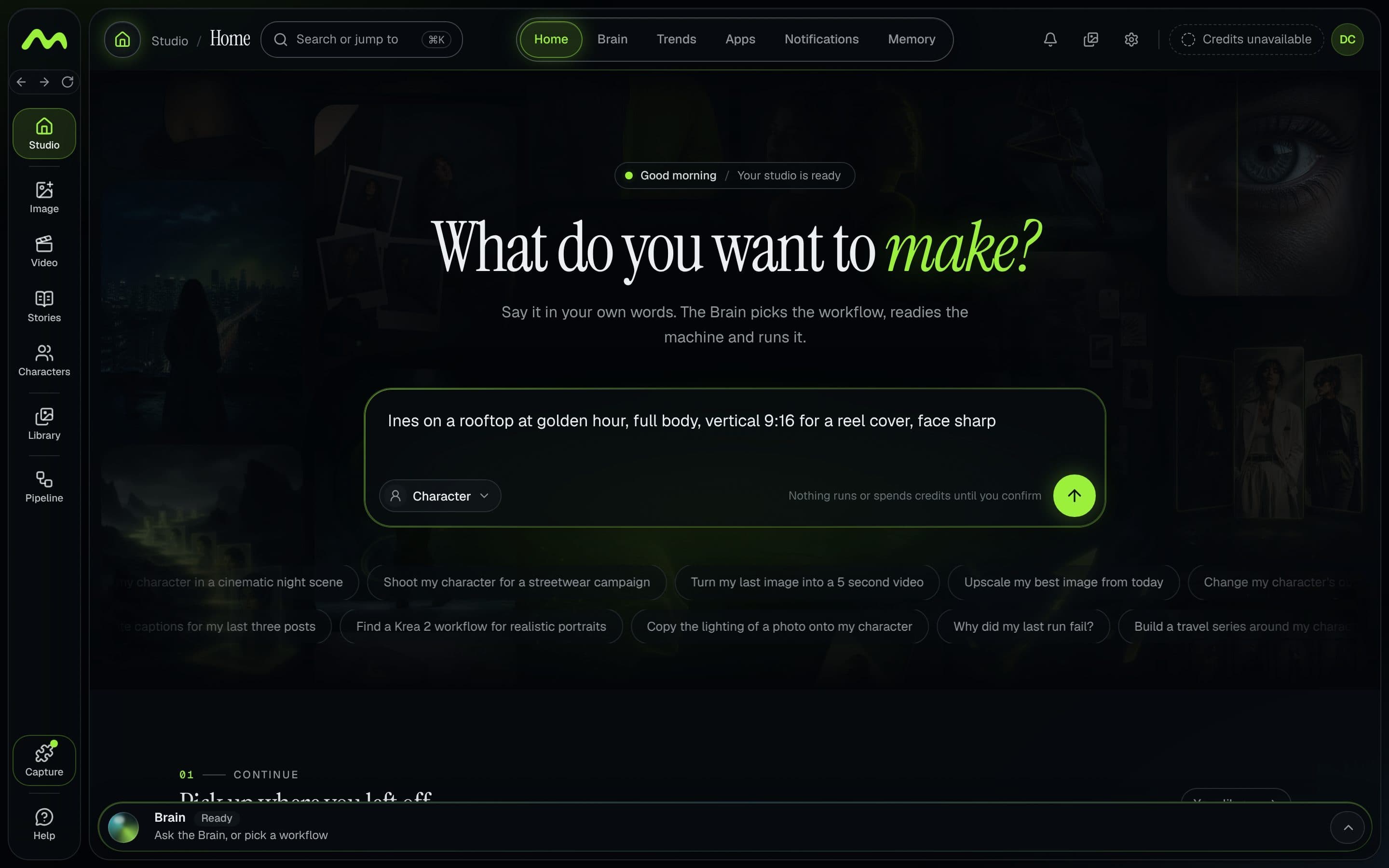
When you run these models for a recurring character, the size is one of the settings that should never drift between images. Musetta runs on your own ComfyUI and keeps each character's reference photos, so a vertical request starts from the same approved face; try the size in your own graph first, since the guide does not need Musetta.
For the video side of the same Reel, see the open video models for vertical reels, and for the models behind these sizes the MOSS-Image review and the Krea 2 vs Qwen-Image 2.1 comparison. If a node is missing when you open a workflow, the missing nodes guide covers it.
Questions
- What resolution should I use for 9:16 in ComfyUI?
- Use the maker's preset if you want to stay inside the tested range: 1536 by 2752 for Qwen-Image 2.1, 768 by 1376 for Krea 2. For an exact 9:16 that scales to a Reel, 864 by 1536 is a good default for Krea 2 and MOSS-Image, an arithmetic pick of ours rather than a vendor preset.
- Can ComfyUI generate 1080x1920 directly?
- Not on models that need multiples of 16, such as MOSS-Image, because 1080 divided by 16 is 67.5. Generate at 864 by 1536 and resize by 1.25, which lands exactly on 1080 by 1920.
- Why do the official presets not scale cleanly to 1080x1920?
- Qwen's 1536x2752 and Krea's 768x1376 both have a ratio of 0.558, about 0.8% away from 9:16 (0.5625). The gap is hard to see, but it means a tiny crop or stretch if you force the Reel size.
- What does the ResolutionSelector node do?
- It is a built-in ComfyUI node that sets width and height from an aspect ratio, including 9:16, and a megapixel target with a default of 1.0. Check its preview and set the multiple to 16 for models that need it.
- Where should the face go in an Instagram Reel?
- Per figures Hopper HQ attributes to Meta, keep key content out of the top 14%, bottom 35% and 6% on each side. On 1080x1920 that puts the face between roughly row 269 and row 1248.
Sources
- 01Qwen/Qwen-Image-2.1 model card · Hugging Face, 2026-10
- 02Qwen-Image-2.1 ComfyUI native workflow · Comfy docs, 2026-10
- 03How to use Krea 2 · Krea, 2026-10
- 04MOSS-Image in ComfyUI · Comfy docs, 2026-10
- 05ResolutionSelector node · Comfy docs, 2026-10
- 06Instagram Reel Size in 2026 · Hopper HQ, 2026-09-18
- 07Krea 2 character sheets and resolution · TrueNorthAI, 2026-08-26
- 08Qwen-Image-Edit discussion 16 · Hugging Face, 2025-09-19
Researched and written by the Musetta editorial desk with AI assistance, from the sources above. Numbers come from those sources; nothing is benchmarked by us unless the article says so. Spotted an error? Tell us on Discord and we fix it.